
Create your first successful route
Use one test device to import a node, run diagnostics, create a rule, and enable routing.
- Difficulty
- Beginner
- Reading time
- 8 min
- Verified version
- V7.1.5
- Updated
- 08/15/2026
Use one non-critical test device to prove the complete path before adding more devices or rules.
What you should see when finished
- SoloIP is running.
- At least one node passes diagnostics.
- A rule matches the test device and points to the intended node or group.
- The test device reports the expected public IP.
Before you start
- Complete download, install, and trial.
- Keep the test device on a stable LAN address or note its current address.
- Have one known-good node configuration ready.
1. Confirm the service is running
Open the SoloIP status page. Continue only when the service is running and the management page is responsive. A starting or restoring state is not a usable test state.
2. Import one test node
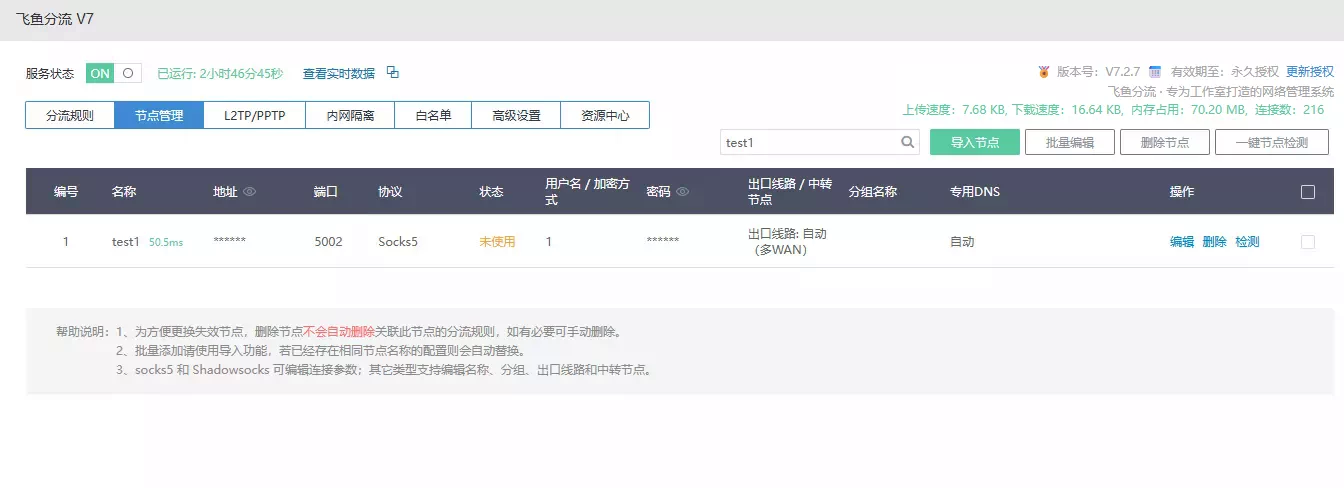
Open node management and use the import or add action. Start with one node and a clear name such as test-hk-01. Save the node, then confirm it appears in the list with the expected protocol and group.
3. Run node diagnostics
Select the node and run the node check. Confirm that the check reaches the configured endpoint and reports an address or region that matches the node. A saved node is not automatically a usable node.
4. Add a routing rule for the test device
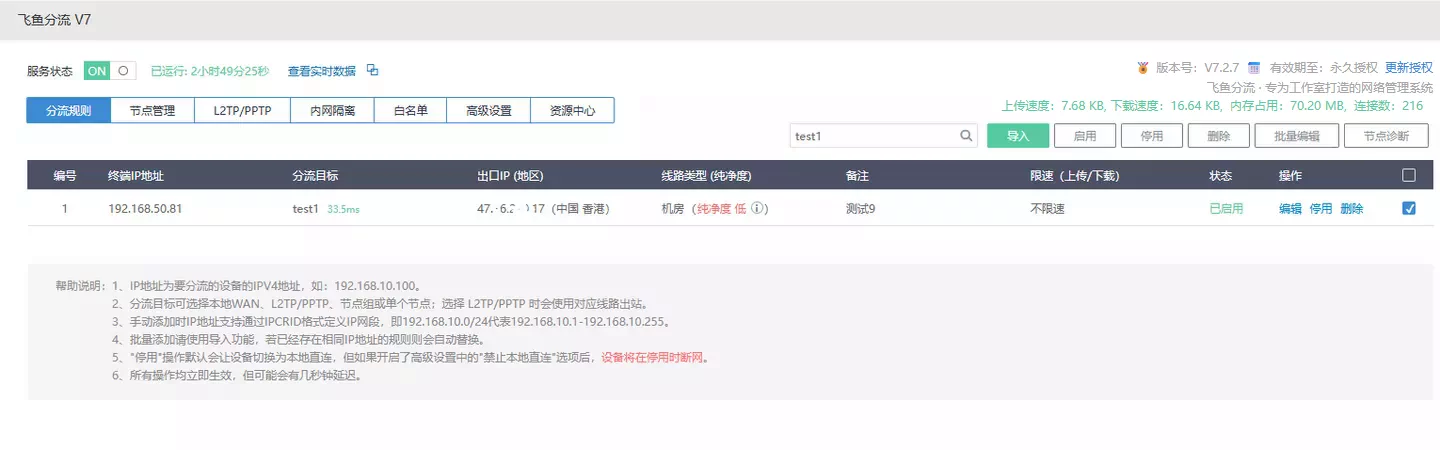
Create a rule for the test device IP. Set target_node to the node name, a group such as Group_test, or an explicit interface such as Interface:wan1. Enable the rule and save it.
Avoid adding a broad subnet rule during the first test. A single-device rule makes it clear which configuration produced the result.
5. Verify on the test device
Open a public IP or region check from the test device. Compare the result with the node diagnostic result. Then open one ordinary website and one business-critical service to make sure DNS and application traffic both work.
If the result is unexpected, use verify the current egress path before changing several settings at once.
Restore direct access
Disable or remove the test rule when the check is complete. Confirm that the device returns to the expected local egress before expanding the configuration.