
Batch-manage nodes and routing rules
Maintain multi-device routing configuration with batch import, grouping, editing, and enable/disable actions.
- Difficulty
- Advanced beginner
- Reading time
- 9 min
- Verified version
- V7.1.5
- Updated
- 08/15/2026
Batch operations are useful after the one-device test is stable. Start with an export or backup so that a malformed import can be reversed.
What you should see when finished
- Nodes have predictable names and groups.
- Rules point to valid nodes, groups, interfaces, or direct paths.
- Batch enable, disable, delete, and limit changes have been verified on a small sample.
Before you start
- Export the current configuration.
- Confirm the import format and delimiter with a two-line sample.
- Keep a management device outside the rule set being changed.
- Decide whether an import should update existing nodes or replace the full list.
1. Import or update nodes
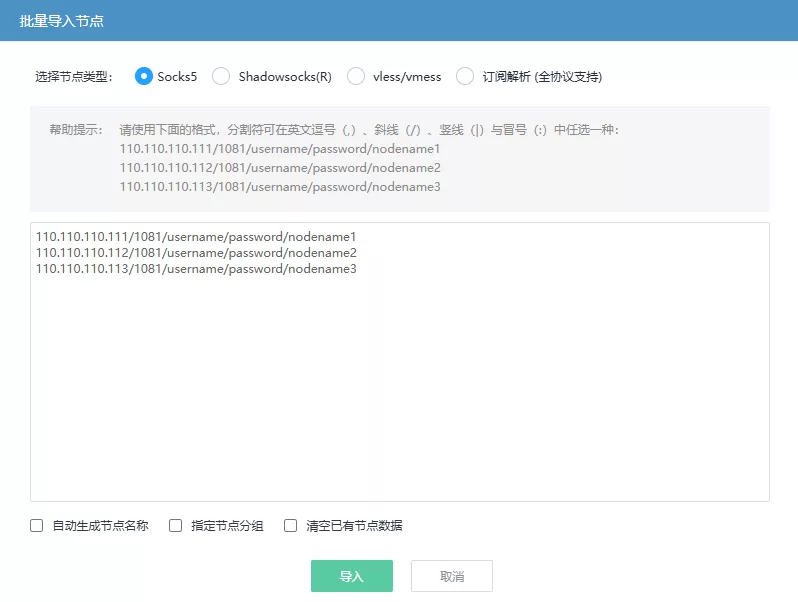
Open node management and choose batch import. Common formats are:
| Type | Line format | ||||||||
|---|---|---|---|---|---|---|---|---|---|
socks5 | IP,Port,User,Pass[,Name] | ||||||||
ss | IP,Port,Cipher,Password[,Name] | ||||||||
vlessvmess | `vless | uuid | server | port | ... or vmess | uuid | server | port | ...` |
others | name: demo, type: vless, server: example.com, port: 443, ... |
Keep replace disabled for the first import. Use an explicit group and a predictable name prefix. Enable automatic names only when the source order is stable.
Updating existing nodes
Decide whether the import should overwrite protocol settings, group, relay path, and dedicated DNS. A partial update can leave an old relay or group in place. Check one existing node after the import before applying the same update to the rest.
2. Run diagnostics and confirm groups
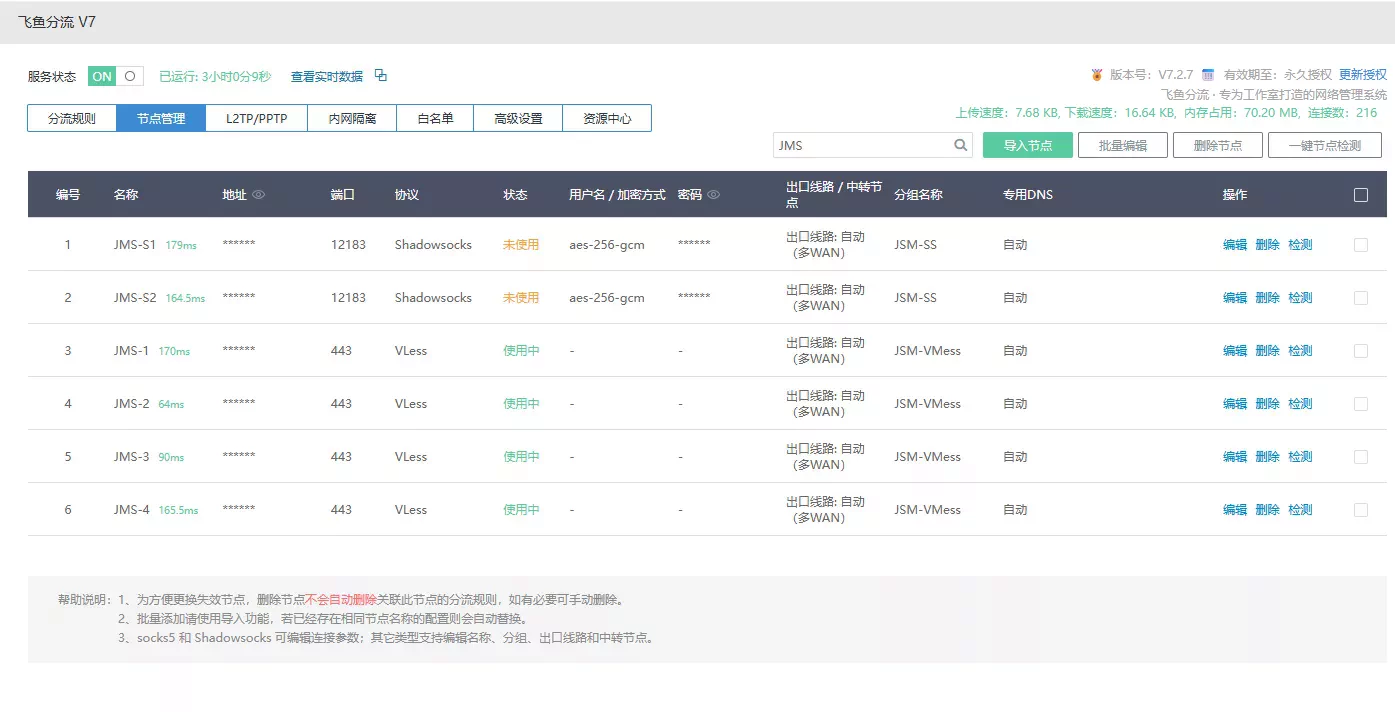
Run a node check after importing. Review failures separately from healthy nodes. Confirm that the group contains the expected members and that a group policy is not selecting a different member than the one you inspected.
3. Import routing rules
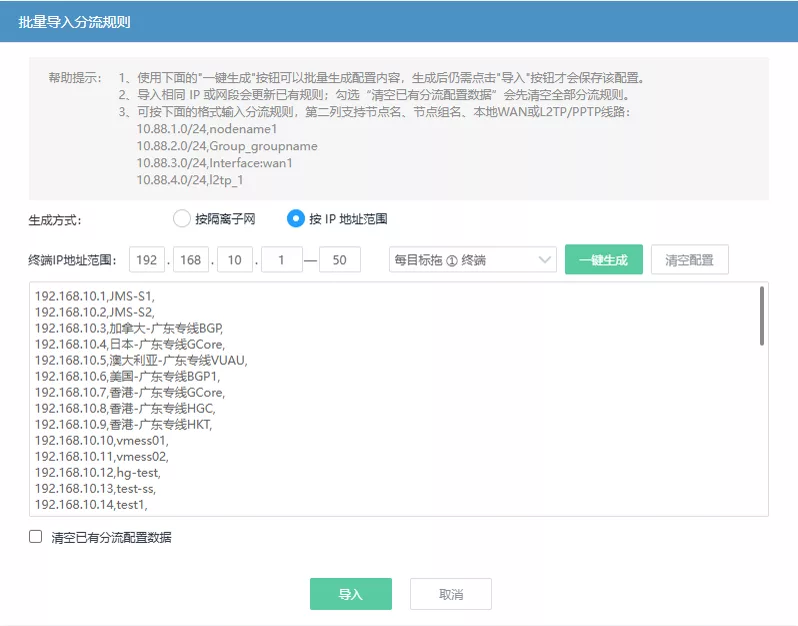
Use the stable format:
IP,Target,Comment
192.168.50.100,Group_test,studio test device
192.168.50.101,DIRECT,office printer
192.168.50.102,Interface:l2tp_1,vpn path
Use Group_<name> for groups, DIRECT for direct access, REJECT to block, and Interface:<ifname> for a specific line. Do not use Interface: as a proxy-service outbound value.
4. Batch enable, disable, or delete
Select a small set first. After the action, check the rule count, enabled state, and one device result. Deleting a rule can restore local direct access, while disabling it can still leave the configuration available for later use.
5. Batch-edit targets or limits
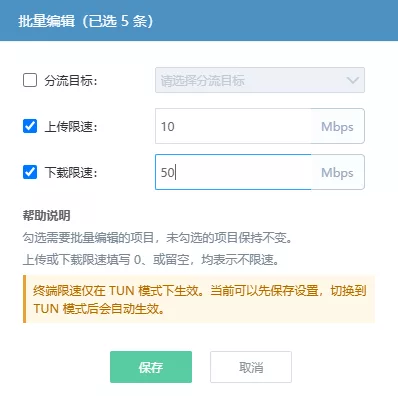
When editing several rules, set only the update_* fields that should change. A limit of 0 means unlimited. Keep target changes and bandwidth-limit changes in separate operations so a failed response is easy to interpret.
6. Verification order after a batch operation
- Check the API or UI response count.
- Reopen one changed node or rule and confirm its stored values.
- Run a diagnostic on one selected node.
- Verify the public IP of one selected device.
- Check one device that was outside the selection.
Common problems
The target is invalid
Check the exact node name, Group_ prefix, or Interface: prefix. A renamed node may leave an old target in a rule.
Rules did not change after a node update
Confirm that the import actually overwrote the node and that the rule points to the same name or group. Run a fresh diagnostic instead of relying on an old result.
Devices lost access after a batch disable
Restore the last known-good rule set, then enable one rule at a time. A strict kill switch can make the effect look like a general network outage.
The import produced unexpected entries
Stop further imports, preserve the response and source text, restore the backup if required, and retry with a two-line sample.